
Learn how to set up Anonymous Proxies residential proxies in DICloak to manage multiple accounts safely and reduce bans.
HTTP Proxies are handling HTTP requests towards the internet on behalf of a client. They are fast and very popular when it comes to any kind of anonymous web browsing.
SOCKSv5 is an internet protocol that is more versatile than a regular HTTP proxy since it can run on any port and traffic can flow both on TCP and UDP. Useful in games and other applications that do not use the http protocol.
A rotating mobile proxy routes internet traffic via mobile devices, offering unique IP addresses from mobile networks. It is a very good choice for SEO monitoring, social media management, web scraping and ad verification, since it frequently changes IPs to avoid blocks.
DICloak is an antidetect browser designed to help you manage many online accounts from a single device without getting them linked or banned. It does this by giving each browser profile its own unique fingerprint, so every profile looks like a different real user to websites. That makes it useful for things like social media management, ecommerce, advertising, and other multi account workflows where stability and privacy matter.
DICloak focuses on making multi account work feel simple while keeping each identity separate and realistic. Below are some of its key features.
Isolated Browser Profiles. Create many profiles on one device, each with its own fingerprint, cookies and session data, so accounts do not overlap or expose each other.
Custom Browser Fingerprints. DICloak lets you fine tune the details of each profile, like user agent, time zone, language, and other device settings.
Cloud Sync And Easy Access. Your profiles are stored in the cloud, so you can open the same setup on any computer you use.
Custom Proxy Configuration Per Profile. DICloak lets you choose a different proxy for every single profile. That means you can put a rotating residential proxy on your scraping profiles and a stable residential IP on your long term accounts, all in the same DICloak workspace, without any hassle.
Automation and Scaling Tools. DICloak offers automation tools such as RPA and bulk tools that help you automate the same process for multiple profiles, thus making it even faster and efficient.
In simple terms, DICloak provides the functionality for realistic browser fingerprints and seamless multi-account management, and Anonymous Proxies brings the realistic residential IP addresses that feel like those of regular home internet users. In combination, you obtain a powerful tool for an extremely stable and detect-resistant solution, which can easily scale up and help your projects develop without constant IP bans, blocks, and problems.
Before we proceed with the setup, ensure that you are logged into your Anonymous Proxies dashboard account and that your proxy information is ready for it.
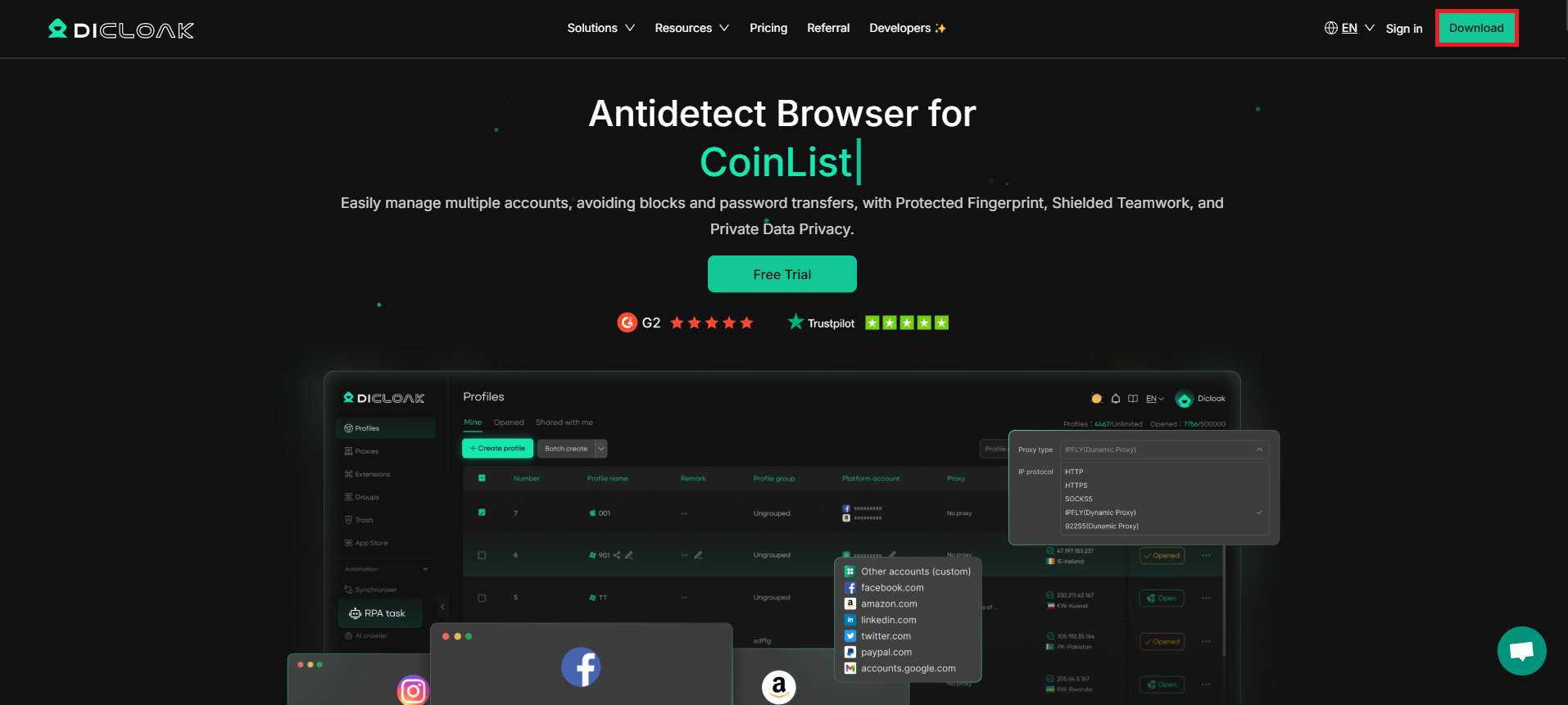
Firstly, be sure that you head over to the DICloak website and click on the Download button.
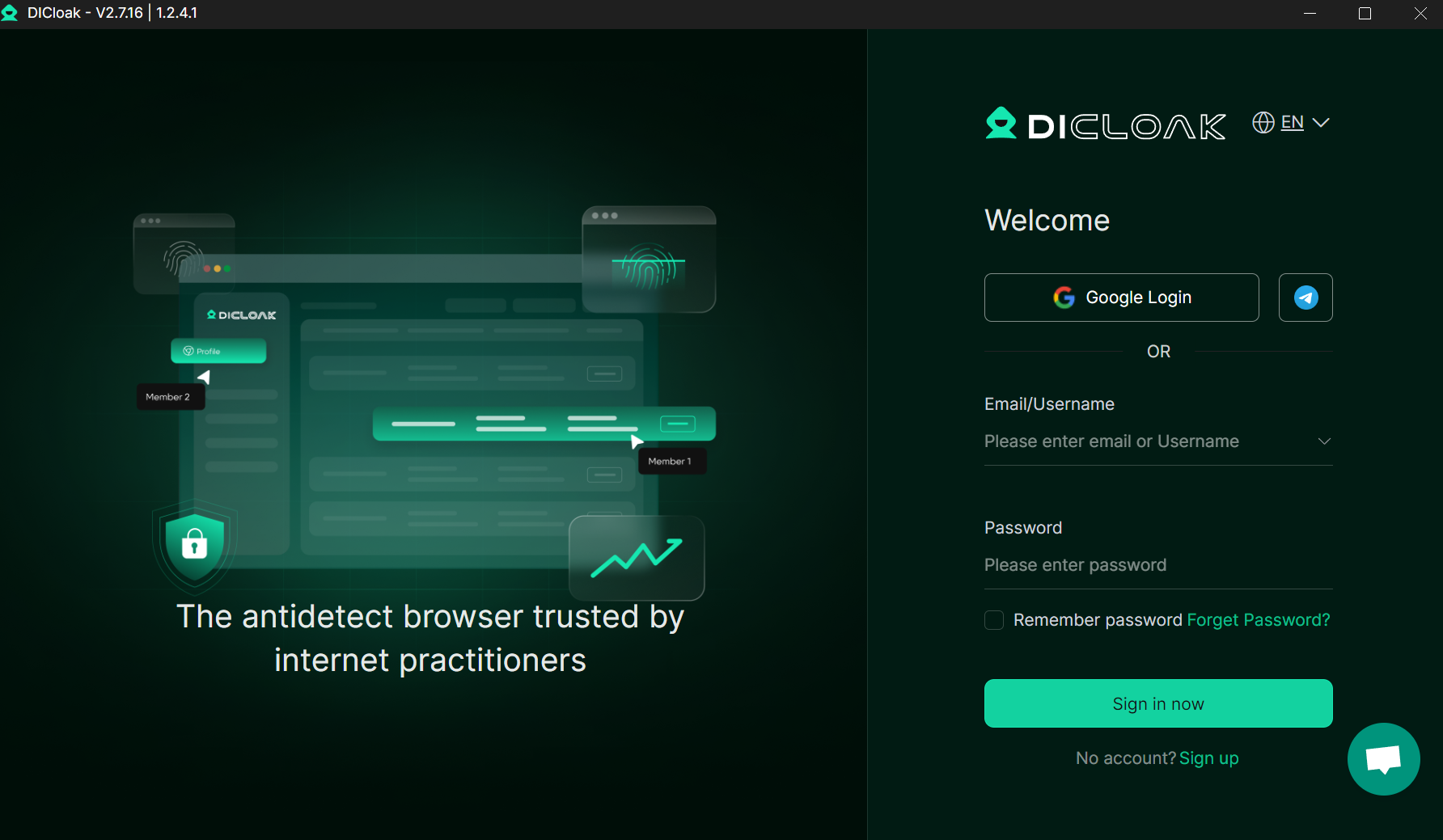
After the app's downloaded, fire it up and sign in.
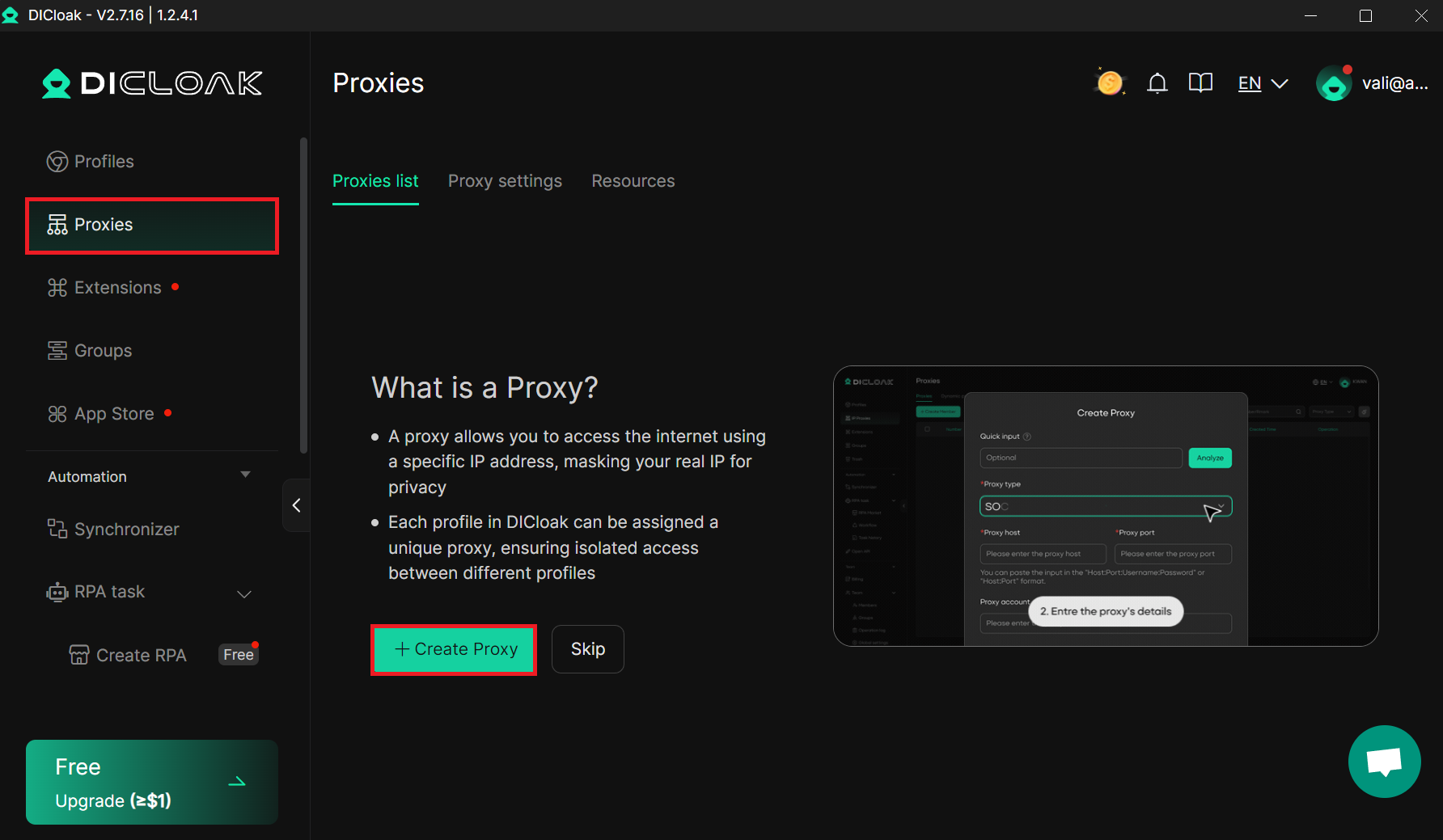
Once you signed in, click on Proxies on the left sidebar, and then click the Create Proxy button.
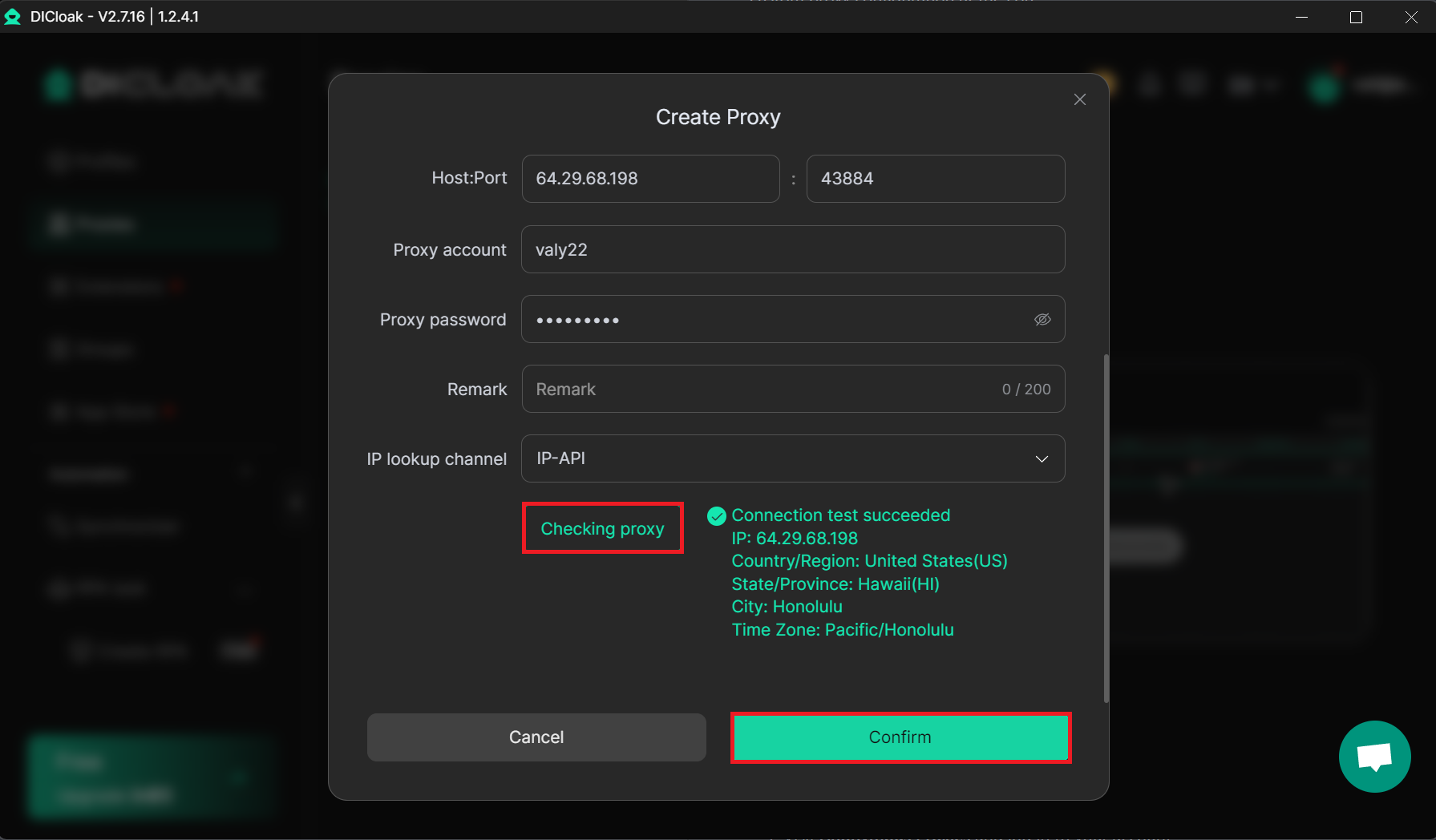
When you are in the Create Proxy window, leave Custom Proxy selected, choose the proxy type you are going to use, for example, we will use HTTP right now and then paste your proxy's details from the Anonymous Proxies dashboard in the required fields.

Once you filled all the required fields, click on Checking Proxy button. If the setup is correct, you will see a success in the right of the button.
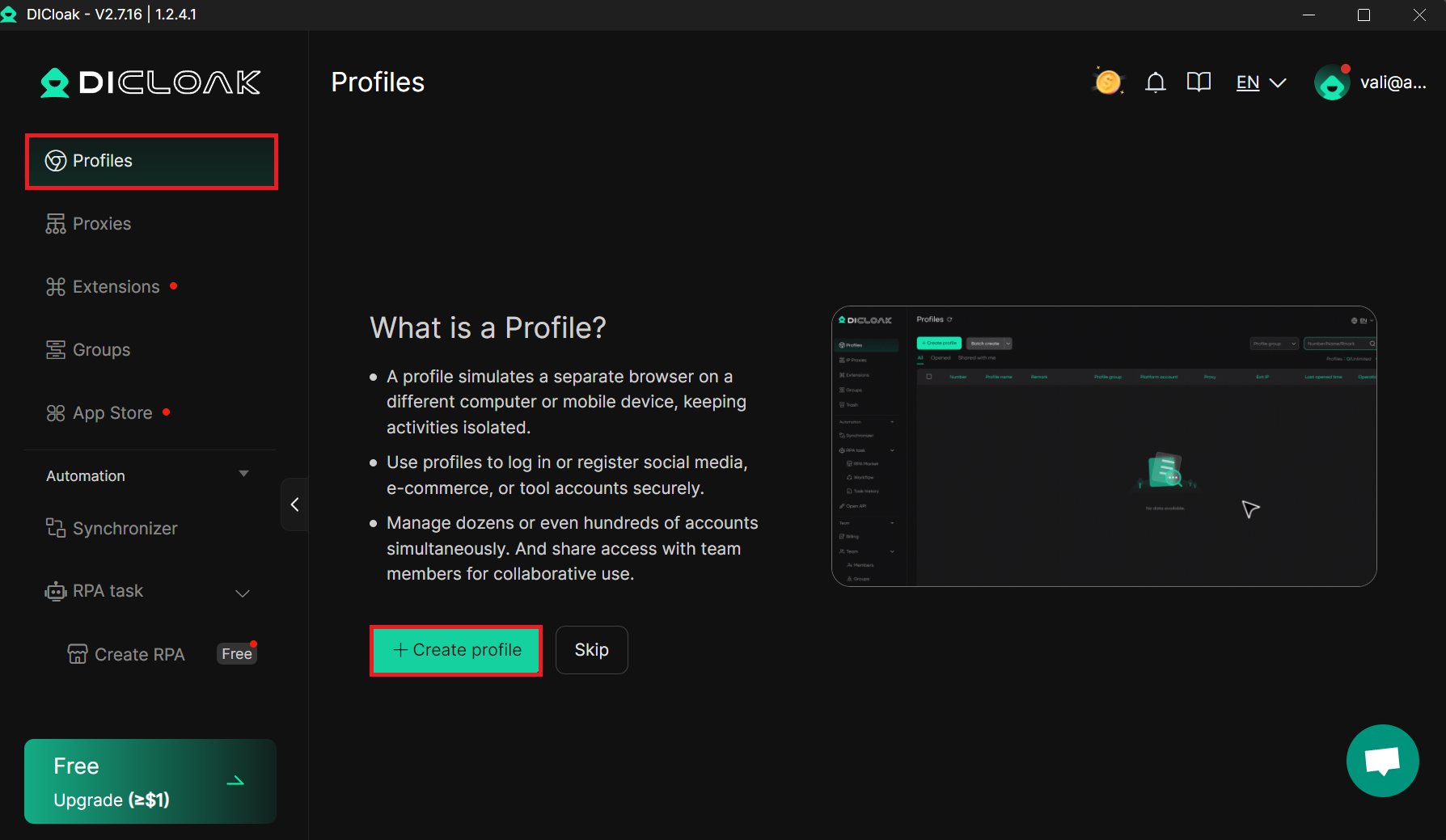
Now, you'll need to go back to the left sidebar and click Profiles, then click on Create Profile.
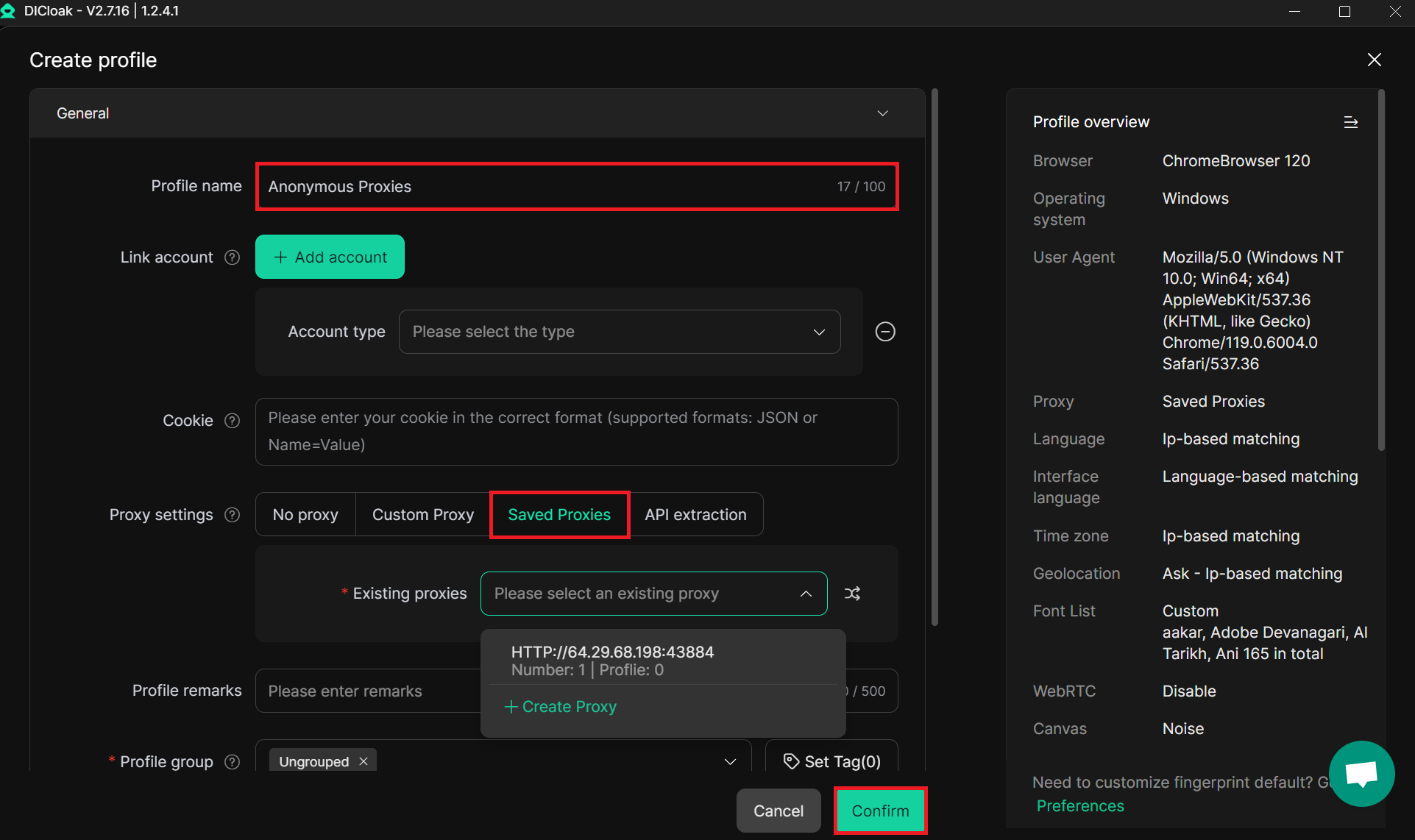
Once you are inside the profile settings, give your profile a clear name, and in the Proxy Settings section, choose Saved Proxies, then in the Existing Proxies dropdown, select the proxy you created earlier, then click Confirm to save the profile.
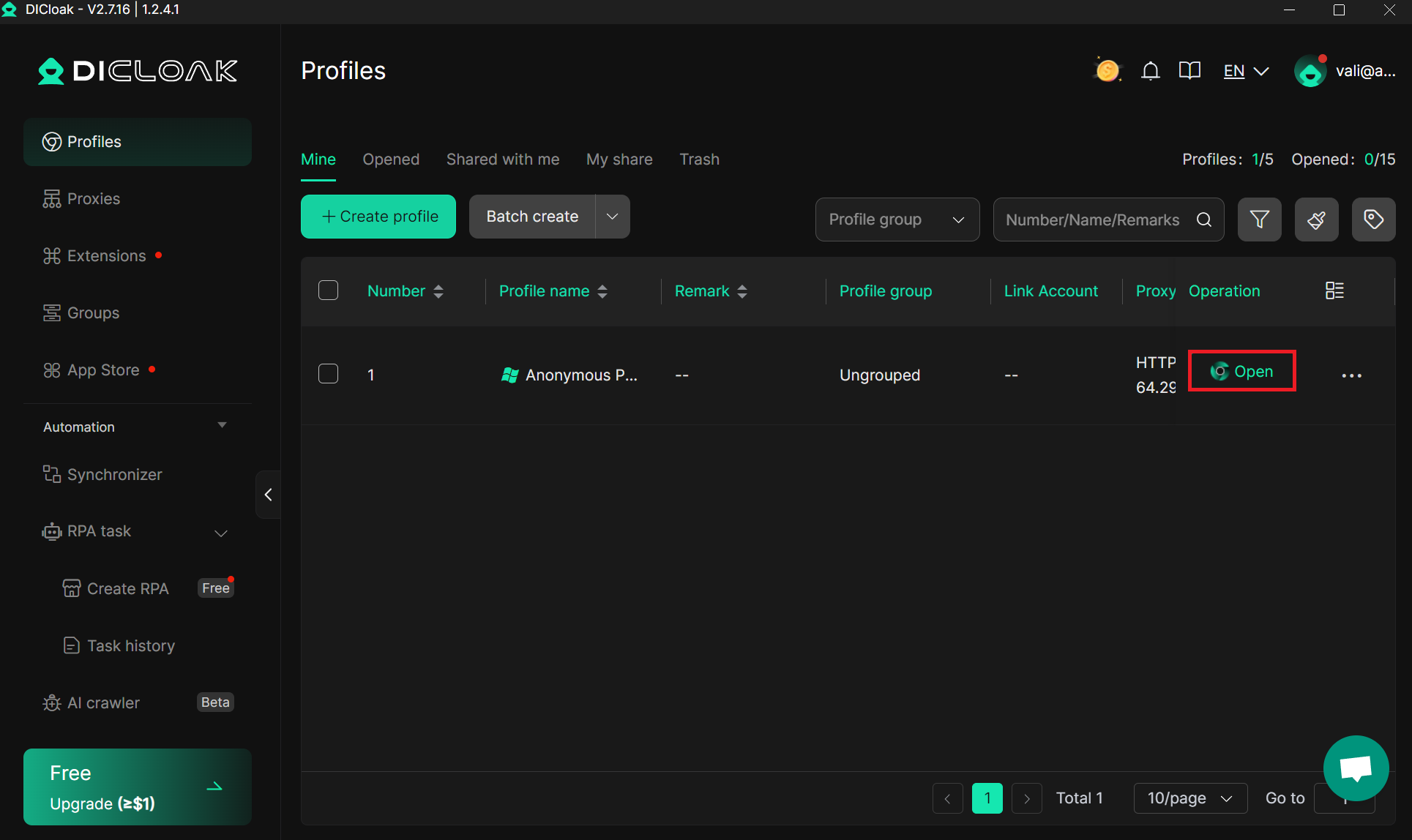
Once you saved it, you will return to the Profiles list, and here make sure that you click the Open button on your new profile.
Setting up DICloak with Anonymous Proxies is a small change that makes a huge difference to how smooth and safe your work feels. DICloak takes care of clean browser fingerprints and separate profiles, while our residential proxy network puts those profiles behind real home IPs, with stable performance and location options that match your needs.
If you ever get stuck during the installation process or are unsure how to utilize our residential IP addresses, do not hesitate to contact our support team, and we’ll be happy to assist you. Also, if you are interested in seeing other tools that you can pair with Anonymous Proxies, visit our integration page.

We offer highly secure, (Dedicated or Shared / Residential or Non-Residential) SOCKS5, Shadowsocks, DNS or HTTP Proxies.
DR SOFT S.R.L, Strada Lotrului, Comuna Branesti, Judet Ilfov, Romania
@2025 anonymous-proxies.net